aka.ms/MobileDeviceSettings — turn on cross-device copy & paste
Clipboard / cross-device copy-paste between your phone and PC won't work until you switch it on manually on your PC. Link to Windows points you to aka.ms/MobileDeviceSettings — here's exactly where it goes and the manual path if the link doesn't land.
Tested · Phone Link 1.26071.164.0 · Link to Windows (Android) 1.26071.104.0 · Verified August 30, 2026
You hit this from the Clipboard section of Link to Windows, where it says "Can't find mobile device settings? Open a browser on your PC and go to aka.ms/MobileDeviceSettings."
That link opens a Windows Settings page on your PC — not on your phone. Cross-device copy-paste is a PC-side toggle.
Enable cross-device copy & paste
- On your PC, click the button below, or type aka.ms/MobileDeviceSettings into your browser. It opens Windows' Mobile devices settings.
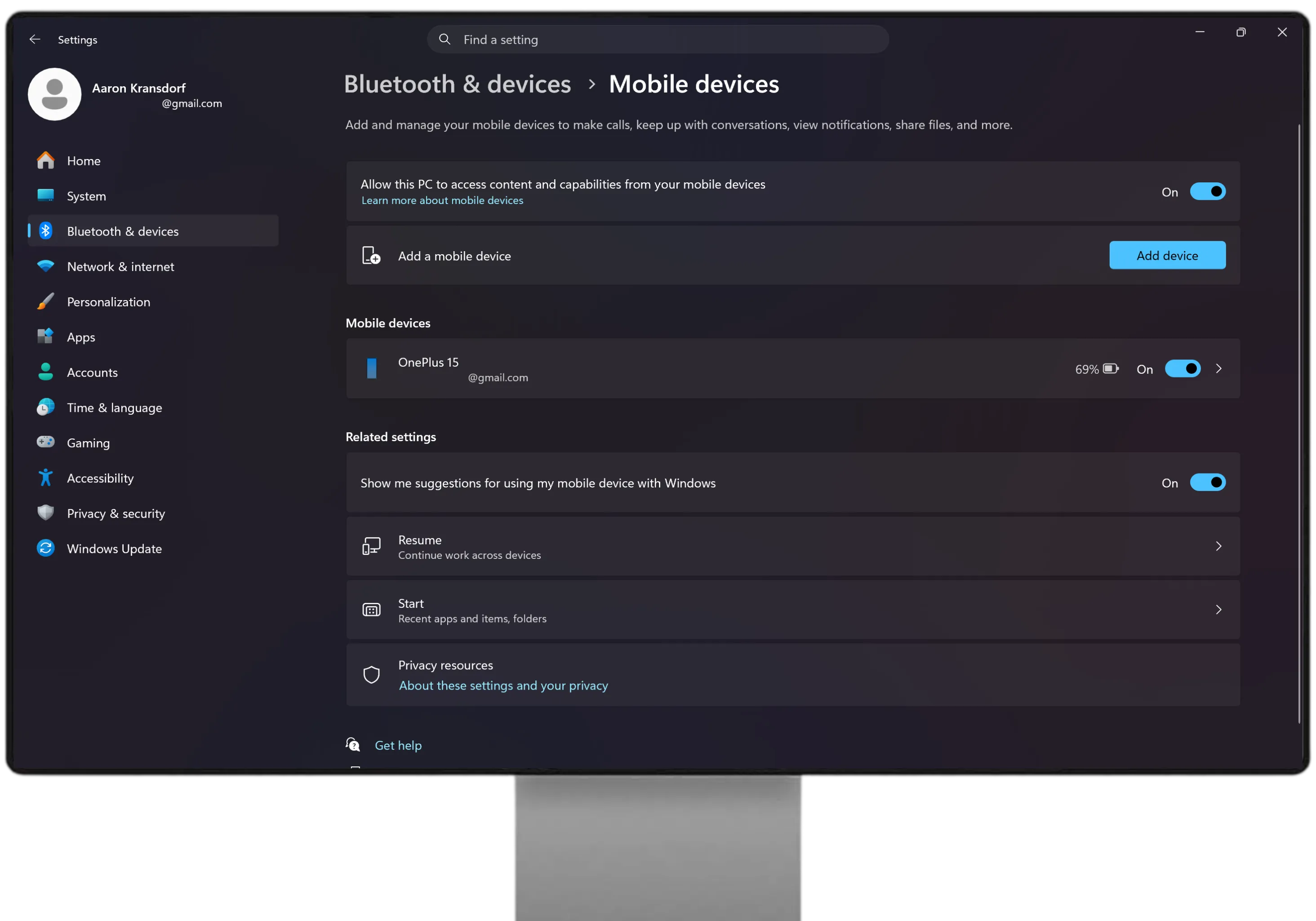
- If the link doesn't land in the right place, go there manually: Settings → Bluetooth & devices → Mobile devices → [your device name].
- Turn on the toggle for your device (and the cross-device / clipboard option). Back in Link to Windows, the Clipboard tab will now work.
Video transcript — tap a line to jump to that moment
The full walkthrough — every screen of the copy-paste setup
- Where you hit this. In Link to Windows, you tapped Clipboard — and at the bottom, under the instructions, it says: "Can't find mobile device settings? Open a browser on your PC and go to aka.ms/MobileDeviceSettings." That's the link that brought you here.
- PC — open the setting. Use the button above or go manually: Settings → Bluetooth & devices → Mobile devices. You'll see "Allow this PC to access your mobile devices" — make sure it's on (this is also the master switch for all of Phone Link), then select your device name.

PC — open the setting - PC — enable the toggle for your device and the cross-device copy-paste option.
- PC — check Windows' own clipboard sync too. This is the prerequisite most guides skip: open Settings → System → Clipboard and turn on Clipboard history and Sync across your devices. Switching copy-paste on inside Phone Link alone is not always enough, and the path is the same on Windows 10 and 11.

PC — check Windows' own clipboard sync too - Test it. Copy text on your phone, paste on the PC (or the reverse). If it's flaky, confirm clipboard is also on in Phone Link → Settings → Features and both devices share one network.
Find your exact problem
The link doesn't open the right settings page
If aka.ms/MobileDeviceSettings opens a generic page or nothing useful, just navigate by hand — the destination is always the same:
My device isn't listed under Mobile devices
If your phone doesn't appear, the link itself probably isn't fully set up or has dropped. Make sure your phone is connected in Phone Link first (pair an iPhone over Bluetooth or link an Android without a QR code if you haven't set that up yet), both devices are on the same network, and both apps are updated — then the device shows up here to toggle. Re-link if needed →
Copy-paste still doesn't work after enabling
Once toggled on, copy text on one device and paste on the other. If it's flaky, confirm clipboard is on in Phone Link → Settings → Features too, and that both devices are on the same network. In my testing, a same-network connection made clipboard sync far more reliable.
Good to know
While you're on this Mobile devices settings page, check one more thing: Phone Link itself can be switched off here under a setting labeled "Allow this PC to access your mobile devices" — not under the name "Phone Link." If that's off, nothing connects, and notably this is the only aka.ms shortcut that still works when it's off (the others won't). So if Phone Link seems completely dead, confirm that toggle is on. More on that in won't-connect fixes.
Cross-device copy-paste is an Android feature — iPhone doesn't get it (see iPhone vs Android). It's one of several features you can toggle individually; for the full picture of what each feature does, its quirks, and the per-feature toggle behavior, see our features & limits guide.
What actually copies: only text and images move between devices — not files. And a real gotcha if you use a Samsung Secure Folder: you can paste content into it from the PC, but you can't copy anything out of a Secure Folder back to the PC. Also note every new copy replaces whatever was on both clipboards.
A note on privacy
Clipboard sync moves the text you copy between your linked devices. To limit data collection overall, use Microsoft's privacy & opt-out settings; review or clear stored data in the Microsoft Privacy Dashboard. Official reference: Microsoft's Phone Link support page.
Adding or removing a device on this screen
This same Mobile devices screen is where Windows now manages the whole phone link — not just copy-paste. Microsoft recently changed how it looks: rather than the device controls sitting inline, you'll often see a "Manage your mobile devices in Windows Settings" message with a button that simply opens Settings.
Two controls here matter:
- Add a mobile device — starts a fresh link. Useful well beyond first setup: if an earlier connection is stuck or half-broken, clicking this clears it and drops you back to Phone Link's start screen (Android and iPhone options) to reconnect cleanly.
- Removing a device — open the device and choose remove. One caution from testing: removing it here doesn't always stop the phone syncing, and there may be no error on the PC at all, even while the phone warns of a "connection delay."
Here's an odd one I hit and haven't seen documented anywhere. With an iPhone already linked, I clicked Add a mobile device and picked Android — and nothing happened. The button simply never opened the next screen. Choosing another iPhone worked fine. It behaves the same way in reverse: with an Android linked first, the iPhone button was the dead one. Restarting the PC, unlinking the iPhone and re-pairing it made no difference, and the lock survived disconnecting the phone entirely — only a restart after removal freed both options again.
Whether that's a deliberate restriction or a straightforward bug, I can't yet say: nothing in Microsoft's documentation mentions it. I've filed a report with Microsoft asking for clarification and will update this page the moment I hear back. Worth knowing that one PC can hold both an Android and an iPhone — so a dead button here is not the platform limit it appears to be.
Was this page helpful?
Thanks for the feedback — it helps me keep this accurate.
Does cross-device copy and paste work with an iPhone?
No. It's documented for Samsung Galaxy and select Surface Duo devices, so an iPhone owner isn't missing a hidden setting — the feature was never offered. What iPhone does and doesn't get →
Why does a copied image look worse on the other device?
Expected. Images above roughly 1 MB are resized in transit, so a copied screenshot can arrive softer than the original. Send the file itself instead of copying it if quality matters.
I switched the toggle on and copy-paste still doesn't work.
Check Windows' own clipboard sync as well — Settings → System → Clipboard, with Clipboard history and Sync across your devices both on. The Phone Link toggle alone isn't always enough, and this is the step most guides skip.
Questions & answers
Comments are moderated — real questions get answered, spam and links are removed.
FAQ
Where is aka.ms/MobileDeviceSettings supposed to open?
On your PC, in Windows Settings → Bluetooth & devices → Mobile devices → your device name. It's a PC-side setting, not a phone one.
What's the manual path if the link doesn't work?
Settings → Bluetooth & devices → Mobile devices → [your device name], then turn on the device / cross-device copy-paste toggle.
Why isn't clipboard sync on by default?
It has to be enabled manually on the PC, which is why it appears not to work until you turn it on here.
Does clipboard sync work on iPhone?
No — cross-device copy-paste is Android-only. See the iPhone vs Android comparison.
My phone isn't listed — what now?
The link probably isn't fully set up. Connect the phone in Phone Link first, put both on the same network, update both apps, then it appears to toggle.

A curious techy from Traverse City, Michigan. I built SyncYourDevice.com after running into these issues myself — if someone comfortable with tech was getting stuck, most people were getting stuck worse. I keep this updated from my own rigorous testing — every fix is one I've reproduced myself in the actual problem environment. Community discussion (Reddit, Microsoft Forums) is sometimes a starting lead, never an untested source; I also lean on official Microsoft documentation and report issues to Microsoft directly.
Tested on: Phone Link (Windows) 1.26071.164.0 · Link to Windows (Android) 1.26071.104.0 — verified August 30, 2026.
Article updates
August 2026
- Added Windows' own clipboard prerequisite (Settings → System → Clipboard) and the tested cross-platform lock on the Add a mobile device screen.
- Verified against Phone Link 1.26071.164.0, Link to Windows 1.26071.104.0 (Android) and 1.26081.28 (iOS).
- Tracking what changes across the apps themselves? That lives on the what's new in Phone Link timeline.
July 2026
- Reviewed and updated for the current Phone Link and Link to Windows versions.